
Format label data and hide optional fields
Keep a single label design for records with different values. Format a SKU, omit an empty bin line or show a SALE badge only when the product is on sale.
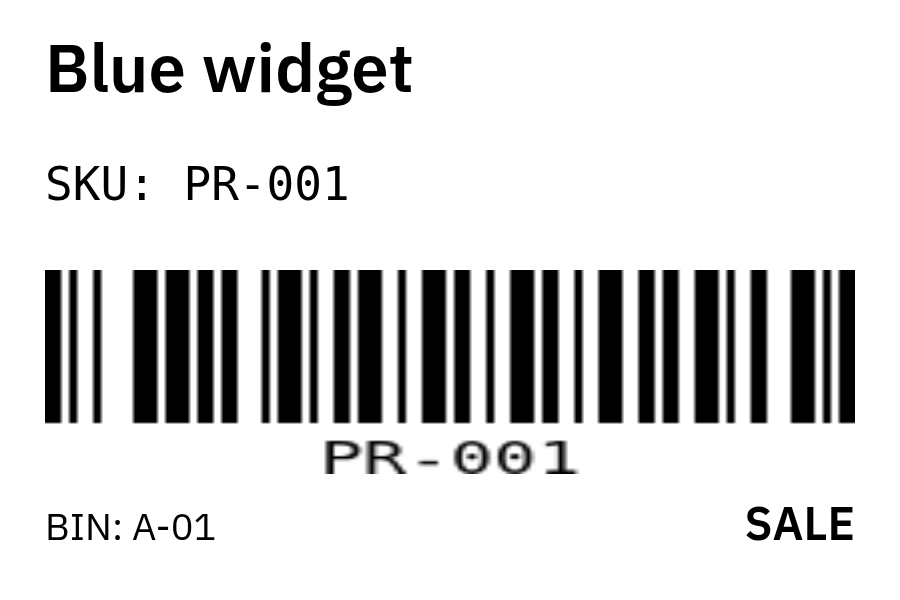
Try the complete workflow
- Open the editable example. Select the SKU text or barcode in Layers, then expand Data formatting & visibility.
- Expand Preview with your data below the canvas. Enter
pr-001for sku: the text becomesSKU: PR-001and the barcode encodesPR-001. - Leave bin empty to hide the entire bin line. Set status to
saleto show the badge; set it tostockto hide it. - Choose Print / PDF for one record. Edited preview values carry into the print dialog, where you can check and change them.
- Choose Use a spreadsheet to use this design with the sample CSV. The sample contains three products, including one without a bin. Download a free proof and compare each record.
Set formatting rules
Select text, a barcode or a QR code, then expand Data formatting & visibility. Rules apply to the filled element value in this order:
- Trim removes spaces at the beginning and end, keeping spaces inside the value.
- Letter case keeps the original value or changes it to uppercase or lowercase.
- Prefix and suffix add literal text before or after the result. They are not additional variable fields.
For a barcode, these settings change what a scanner reads. Keep any accompanying text consistent, use the required barcode format and scan a physical proof. Formatting does not assign retail identifiers or restore zeros that were already lost in the source spreadsheet.
Hide an optional field
Enable Hide when a field is empty on the bin element. If any variable used by that element is blank, the whole element disappears, including its prefix. The same field can still be required by another visible element. A value of 0 counts as a value.
This hides artwork in place; the rest of the layout does not move. Use it for optional bin locations, second address lines or optional codes, and inspect both populated and empty examples.
Show artwork only for matching records
The Show this element setting works for text, codes, images, shapes and lines. Choose a field and test whether it has a value, is empty, equals a value or does not equal it. Condition fields appear in the spreadsheet mapping and print dialog even when they are not printed as text.
Conditions use the original field value, ignoring outer spaces. Comparisons are case-sensitive: sale matches sale, but not SALE. If Hide when a field is empty is also enabled, both rules must allow the element to appear. A job with no visible elements is blocked.
Save and repeat
Rules stay with the design when you save it locally, save it to your account, or download an editable design file. Preview values are separate and are not included in that design file. In a batch, custom column mappings follow matching header names when you replace or reorder the spreadsheet. Record selection resets when the rows change so it cannot accidentally refer to different recipients.
Individual PDFs and proofs of up to five batch labels are free without an account. Pro adds complete batches and saved lists. See batch limits and repeat-printing steps.
Updated 28 September 2026. These rules were checked in browser previews, exported PDFs and the shared server renderer. Check physical output with your own stock, printer and scanner.