
Print Labels from Excel: Avery Sheets & Free PDF Proof
A good label run starts with a clean table: one header row, one recipient or product per row, and text fields for postal codes and identifiers.
Try three addresses before importing your list.
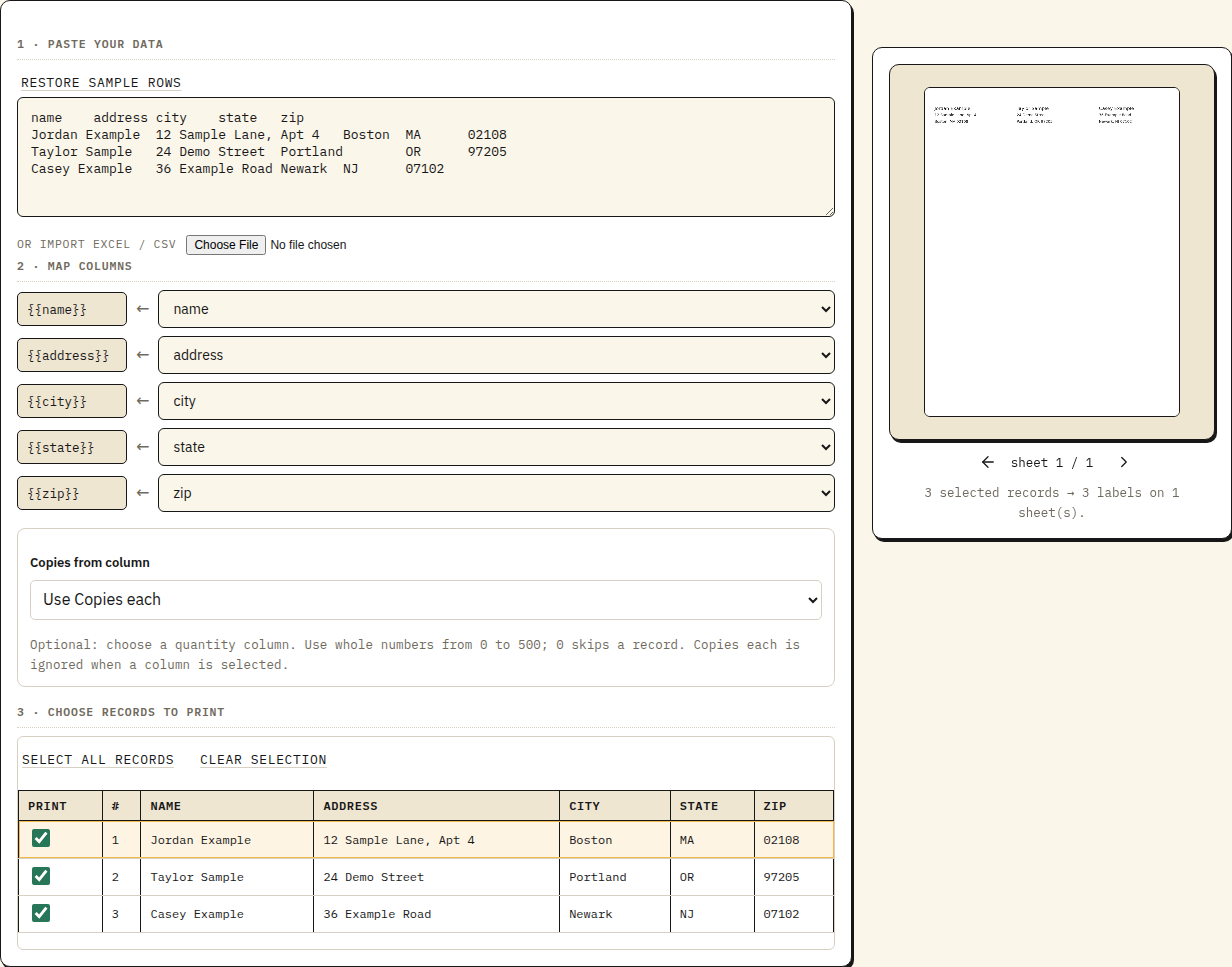
Open a mapped Avery 5160 sheet, replace the fictional rows with your Excel file, and download a free proof of up to five labels. No account, Word mail merge or printer installation needed.
Complete batch output and saved lists use Pro: $12/month, with a 14-day trial for new accounts. The free proof is available before signing up.
Excel row → printed label
- name
- Jordan Example
- address
- 12 Sample Lane, Apt 4
- zip
- 02108
12 Sample Lane, Apt 4
Boston, MA 02108
Avery 5160 · 2⅝ × 1 inch
30 positions on US Letter
Start with the mapped sample, then import your Excel or CSV file. Download up to five labels as a free PDF proof. Complete batch output and saved lists require Pro or the new-account trial.
Step-by-step instructions
- Use a header row with distinct names such as name, address, city, state and zip. Remove merged cells, title rows above the headers and totals below the data.
- Save as .xlsx or CSV. Keep ZIP codes and long identifiers as text, and inspect their actual values before exporting. A display format is not a substitute for preserving the underlying text.
- Open the Avery address workspace. Import your file and map each label field to the matching column. Try the built-in sample if you do not yet have a design or list.
- Inspect the first, last and any unusual rows in the preview. Correct missing fields, long addresses and barcode errors before starting a batch.
- Choose Download free proof for the first five selected labels. With Pro, export the complete batch PDF or send it to a supported connected printer. For a sheet design, select the matching Avery layout; for a roll, confirm the dimensions of one label. Test a small batch before using adhesive stock.
Try Excel to Avery 5160 as a complete workflow
Preview a mapped address sheet
The sample opens a 30-position Letter layout with three fictional addresses. Replace them with your Excel or CSV file, map the columns and inspect the ZIP codes. A five-label proof works without an account or printer installation. Complete batch output is included in Pro or the new-account trial. See the batch workflow, limits and repeat-run setup.
Print a mailing list without Word mail merge
The browser workspace imports .xlsx and CSV directly. For holiday cards or customer mailings, keep each recipient in one row, select the records you need and start at a later sheet position when reusing compatible stock. Check a plain-paper proof against the label sheet before a full run. Google Sheets users can download CSV and follow the same steps.
Download a small address-list example
For a printable reference, open the editable address sheet and download its sample PDF. Three fictional rows include a ZIP code starting with zero and a quoted address containing a comma. Import the file directly into PaperReady to see how both should be preserved.
| CSV column | Example | Map to label field |
|---|---|---|
| name | Jordan Example | {{name}} |
| address | 12 Sample Lane, Apt 4 | {{address}} |
| city | Boston | {{city}} |
| state | MA | {{state}} |
| zip | 02108 | {{zip}} |
Keep the zero in 02108
In Excel, format the column as Text before entering or pasting postal codes. When bringing in a CSV, use Data → From Text/CSV and set that column’s type to Text before loading. If Excel has already changed 02108 into 2108, changing its format afterward cannot reliably restore the original value. Correct the source and check the label preview.
Fix your batch before printing
| Problem | What to check |
|---|---|
| Every label repeats the same address | Use mapped placeholders rather than an address typed directly into the design. |
| ZIP code is missing its first zero | Inspect the source as text; reimport after correcting it. |
| An address runs off the label | Use a larger label, shorter lines or smaller text; inspect the longest row. |
| Wrong number of labels | Check for empty rows and totals, and confirm the selected row range. |
| Need mail merge in Word instead? | Use Microsoft’s Excel-to-Word preparation guide. |